• Skip to content
  • Skip to primary sidebar

Header Right

  • Home
  • About
  • Contact

admin

Business Start-Up Costs — What’s Deductible?

November 21, 2020 by admin

Word, writing Tax Deductions. Business concept for Finance Incoming Tax Money Deduction written on white paper on the yellow folded paper.Launching a new business takes hard work — and money. Costs for market surveys, travel to line up potential distributors and suppliers, advertising, hiring employees, training, and other expenses incurred before a business is officially launched can add up to a substantial amount.

The tax law places certain limitations on tax deductions for start-up expenses.

  • No deduction is available until the business becomes active.
  • Up to $5,000 of accumulated start-up expenses may be deducted in the tax year in which the active business begins. This $5,000 limit is reduced (but not below zero) by the excess of total start-up costs over $50,000.
  • Any remaining start-up expenses may be deducted ratably over the 180-month period beginning with the month in which the active business begins.

Example: Gina spent $20,000 on start-up costs before her new business began on July 1, 2020. In the 2020 tax year, she may deduct $5,000 and the portion of the remaining $15,000 allocable to July through December of 2020 ($15,000/180 × 6 = $500), a total of $5,500. The remaining $14,500 may be deducted ratably over the remaining 174 months.

Instead of deducting start-up costs, a business may elect to capitalize them (treat them as an asset on the balance sheet). Deductions for “organization expenses” — such as legal and accounting fees for services related to forming a corporation or partnership — are subject to similar rules.

Our Albuquerque, NM CPA firm provides accounting services  for all types of small businesses. Call us at 505-200-0094 now and tell us about your business or request a complimentary consultation online.

Filed Under: Business Tax

10 Tips for Better Budgeting…

October 20, 2020 by admin

Image of businessperson pointing at document in touchpad at meeting…and how QuickBooks Online can help you with the mechanics.

If you already have a budget, it’s probably been difficult for you to stick with it for the last several months. Unless you provide products and/or services that have been in great demand since the COVID-19 pandemic took hold, you’ve had to adjust your budget significantly.

Better days are ahead, though, and now is a good time to start doing some planning for 2021. While there are still likely to be uncertainties next year, creating a budget will give you a starting point. A budget increases your awareness of all of your projected income and expenses, which may make it less likely that you’ll find yourself constantly running short on funds.

Here are some ways you can make your budgeting process more effective and realistic.

Use what you already know. Unless you’re starting a brand-new business, you already have the best resource possible: a record of your past income and expenses. Use this as the basis for your projections.

Be aware of your sales cycle. Even if you’re not a seasonal business, you’ve probably learned that some months or quarters are better than others. Budget conservatively for the slower months.

Distinguish between essential and non-essential expenses. Enter your budget items for the bills and other expenses that must be covered before you add optional categories.

QuickBooks tips

You can use data from a previous year to create a new budget in QuickBooks Online.

Keep it simple. Don’t budget down to the last paper clip. You risk budget burnout, and your reports will be unwieldy.

Build in some backup funding. Just as you’re supposed to have an emergency fund in your personal life, try to create one for your business.

Make your employees part of the process. You shouldn’t be secretive about the expense element of your budget. Try to get input from staff in areas where they have knowledge.

Overestimate your expenses, a little. This can help prevent “borrowing” from one budget category to make up for a shortfall in another.

Consider using excess funds to pay down debt. Debt costs you money. The sooner you pay it off, the sooner you can use those payments for some non-essential items.

Look for areas where you can change vendors. As you’re creating your budget think carefully about each supplier of products and services. Can you find less costly alternatives?

Revisit your budget frequently. You should evaluate your progress at least once a month. In fact, you could even start by budgeting for only a couple of months at a time. You’ll learn a lot about your spending and sales patterns that you can use for future periods.

How QuickBooks Online Can Help

QuickBooks Online offers built-in tools to help you create a budget. Click the gear icon in the upper right corner and select Budgeting under Tools. Click Add budget. At the top of the screen, give your budget a Name and select the Fiscal Year it should cover from the drop-down list by that field. Choose an Interval (monthly, quarterly, or yearly) and indicate whether you want to Pre-fill data from an existing year.

QuickBooks tips

QuickBooks Online supplies a budget template that already contains commonly used small business items.

The final field is labeled Subdivide by, which is optional. You can set up budgets that only include selected Customers or Classes, for example. Select the desired divider in that field, then choose who or what you want included in the next. Click Next or Create Budget in the lower right corner (depending on whether you used pre-filled data) to open your budget template. If you subdivided the budget, you’ll see a field marked View budget for. Click the down arrow and select from the options listed there.

To create your budget, you simply enter numbers in the small boxes supplied. Columns are divided by months or quarters, depending on what you specified, and rows are labeled with budget items (Advertising, Gross Receipts, Legal & Professional Fees, etc.). You simply enter numbers in the boxes that apply. When you click in a box, a small arrow appears pointing right. Click on this, and your number will automatically appear in the rest of that row’s boxes. When you’re done, click Save in the lower right. You can edit your budget at any time.

QuickBooks Online provides two related reports. Budget Overview displays all of the data in your budget(s). Budget vs. Actuals shows you how you’re adhering to your budget.

We know creating a budget can be challenging, but it’s so important – especially right now. We’d be happy to look at your company’s financial situation and see how QuickBooks’ budgeting tools—and its other accounting features—can help you get a better understanding of your finances.

SOCIAL MEDIA POSTS

Don’t have a budget set for your business? QuickBooks Online has tools that can simplify the process of creating one.

When you’re creating a budget, it’s helpful to distinguish between essential and non-essential expenses. QuickBooks Online has tools that can help you, including budgeting for necessities first.

When was the last time you shopped for new suppliers? Now is a good time to see if you could save some money and help with your budget. QuickBooks Online has many tools that can help both you and your business budget.

Did you know QuickBooks Online allows you to use existing income and expense data to create a budget? Here is how this is done.


Call us at 505-200-0094 now and tell us about your business or request a complimentary consultation online.


Filed Under: Best Business Practices

5 QuickBooks Online Add-On Apps You May Need to Add

September 28, 2020 by admin

Business people Having Meeting Around Table In Modern OfficeNot finding quite everything you need in QuickBooks Online? Here are some handy add-on apps available.

QuickBooks Online may work for you just fine as is. After all, it was designed to meet the needs of the millions of small businesses that want to manage and track their income and expenses, create records and transactions, and run reports to gauge their financial health. QuickBooks Online was also designed to grow along with your business. But there’s no need for Intuit to add internal features to do so. In fact, that would make it too expensive and unwieldy for many companies.

Instead, Intuit has partnered with other small business websites to provides add-ons–applications that extend the usefulness of QuickBooks Online in one or more areas, like accounts receivable and payable, inventory, and expense-tracking. They integrate easily to share data and do the extra work you need. Here are some of them to consider.

Bill.com

Bill.com automates your accounts receivable and payable processes. It supports electronic billing and payment, as well as multiple approval levels.

You can certainly enter and pay bills using QuickBooks Online. And you can send invoices to customers and receive payments. But adding a connection to Bill.com gives you more advanced options for accounts receivable and payable. Simply send your bills to Bill.com by scanning, emailing, faxing, or taking a picture with your smartphone. The site’s automation tools turn them into digital records and route them through your specified approvers. Once approved, they’re paid electronically or by paper check. Invoices are just as easy to process; customers can pay by using PayPal, credit card, or ACH. Bill.com’s mobile app makes it possible to keep up with invoices and bills while you’re out of the office.

Expensify

Are your employees still paper-clipping receipts to handwritten expense reports? This method is unnecessarily time-consuming – and often inaccurate. Expensify solves both problems. Your staff can take photos of receipts with their smartphones. Expensify then converts the expense information into coded digital records and submits them for approval based on your company’s policies. Credit card purchases can be automatically imported, too. All data is synchronized with QuickBooks Online in real-time and coded to reflect your preference of QBO’s expense accounts, customers/jobs, etc. Once you’ve approved a report, you can have the money deposited in the employee’s bank account the next day.

TSheets Time Tracking

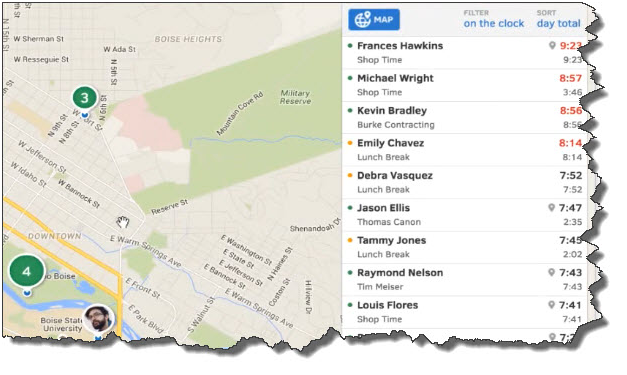
TSheets employee scheduling software automates tasks that QuickBooks Online doesn’t do: scheduling and remote time-tracking for your hourly employees. Your staff no longer has to fill in paper timesheets. Instead, they can use their smartphones to track their hours and GPS location points. And while Excel is certainly better for creating schedules than paper, TSheets takes over that task, too. After you’ve approved timesheets, that information is sent over to QuickBooks, ready for use in your payroll processing.

quickbooks

Your employees can easily “punch” in and out using their smartphones. TSheets also uses GPS technology so that your staff members’ locations are always known to you.

SOS Inventory

QuickBooks Online performs some basic inventory management tasks. You can create records for items and use them in transactions, and keep track of the number of items in stock so you know when to reorder (or have a sale). SOS Inventory goes well beyond those capabilities. You can create sales orders, track cost history and serial numbers, and document work-in-progress (WIP). SOS Inventory supports multiple locations and the entire pick/pack/ship process.

Insightly CRM

You can create thorough customer records in QuickBooks Online and document some of your interaction. But it doesn’t facilitate true Customer Relationship Management (CRM) nor project management. Insightly CRM does both. It lets you build exceptionally thorough customer profiles so that you can view social streams, email history, and any events, opportunities, or events related to them. Its project management features include the ability to track by pipelines or milestones, define contact roles and custom fields, and generate advanced project reporting.

QuickBooks Online Integration Key

All of these apps can work in standalone settings, but their integration with QuickBooks Online and their mobile capabilities create powerful partnerships that help you serve both your customers and your employees in ways that QuickBooks Online alone can’t.

We’re not trying to sell you applications here. Our concern is that you’re getting as much out of QuickBooks itself as you can. We can steer you toward add-on solutions if that seems necessary, but we’re always happy to work with you on getting to know QuickBooks Online better and matching its capabilities to your company’s needs.

Our Albuquerque, NM offers QuickBooks consulting as part of our package of accounting services for small businesses. Call us at 505-200-0094 or request your complimentary consultation online now and find out how you can leverage QuickBooks to precisely track your finances.

Filed Under: Best Business Practices

Cyber Criminals are Coming – Protect Your Business Now

August 20, 2020 by admin

Analyzing electronic documentWith data breaches becoming more and more common, it’s important to be proactive in protecting your business against cybercrimes. Here are some thoughts on preventing cybercrimes in the first place and having a plan to protect your customers’ information and your reputation should you become a victim.

Test your protection systems. It’s better to have a friend (such as a cybersecurity firm) uncover your weaknesses than a hacker. It’s especially important to run tests after you upgrade software or implement a new technology.

Check your apps. If you’ve created a mobile app for your customers, work with the app’s developers to ensure it’s secure before you release it.

Eliminate third-party risks. You could be exposed to risks via your vendors. Make sure they take security as seriously as you do.

Implement a response plan. Create a step-by-step response to cyber emergencies (e.g., a denial-of-service attack, the loss of a critical laptop, etc.). Hold “drills” to ensure that your plan is effective and that everyone knows what to do.

For more tips on how to keep business best practices front and center for your company, give us a call today.

Our Albuquerque, NM CPA firm provides accounting services  for all types of small businesses. Call us at 505-200-0094 now and tell us about your business or request a complimentary consultation online.

Filed Under: Best Business Practices

Are Opportunity Zones an Opportunity for You?

July 20, 2020 by admin

Business team analyzing market researchCreated by the TCJA in 2017, opportunity zones are designed to help economically distressed areas by encouraging investments. This article contains an introduction to the complex details of how these zones work.

The IRS describes an opportunity zone as “an economically-distressed community where new investments, under certain conditions, may be eligible for preferential tax treatment.” How does a community become an opportunity zone? Localities qualify as opportunity zones when they’ve been nominated by their states. Then, the Secretary of the U.S. Treasury certifies the nomination. The Treasury Secretary delegates authority to the IRS.

The Tax Cuts and Jobs Act added opportunity zones to the tax code. The IRS says opportunity zones are new, although there have been other provisions in the past to help communities in need with tax incentives to spur business.

The new wrinkle is how opportunity zones are designed to stimulate economic development via tax benefits for investors.

  • A Qualified Opportunity Fund is an investment vehicle set up as a partnership or corporation for investing in eligible property located in a qualified opportunity zone. A limited liability company that chooses to be treated either as a partnership or corporation for federal tax purposes can organize as a QOF.
  • Investors can defer taxes on any prior gains invested in a QOF until whichever is earlier: the date the QOF investment is sold or exchanged or Dec. 31, 2026.
  • If the QOF investment is held longer than five years, there is a 10 percent exclusion of the deferred gain.
  • If the QOF investment is held for more than seven years, there is a 15 percent exclusion of the deferred gain.
  • If the QOF investment is held for at least 10 years, the investor is eligible for an increase in basis on the investment equal to its fair market value on the date that the QOF investment is sold or exchanged.
  • You don’t have to live, work or have a business in an opportunity zone to get the tax benefits. But you do need to invest a recognized gain in a QOF and elect to defer the tax on that gain.
  • To become a QOF, an eligible corporation or partnership self-certifies by filing Form 8996, Qualified Opportunity Fund, with its federal income tax return.

The first set of opportunity zones covers parts of 18 states and was designated on April 9, 2018. Since then, there have been opportunity zones added to parts of all 50 states, the District of Columbia and five U.S. territories. More details are available on the U.S. Treasury website. Or see the IRS website for more information

Our Albuquerque, NM CPA firm provides accounting services  for all types of small businesses. Call us at 505-200-0094 now and tell us about your business or request a complimentary consultation online.

Filed Under: Business Tax

Social Security: Note the Key Changes for 2020

June 17, 2020 by admin

All Business CPAThe Social Security Administration has released new numbers for those paying Social Security and those collecting it. Check out the new maximum taxable earnings amount as well as COLA and other key adjustments.

Every year, the Social Security Administration takes a fresh look at its numbers and typically makes adjustments. Here are the basics for 2020 — what has changed, and what hasn’t.

First, the basic percentages have not changed:

  • Employees and employers continue to pay 7.65% each, with the self-employed paying both halves.
  • The Medicare portion remains 1.45% on all earnings, with high earners continuing to pay an additional 0.9% in Medicare taxes.
  • The Social Security portion (OASDI) remains 6.20% on earnings up to the applicable taxable maximum amount — and that’s what’s changing:

Starting in 2020, the maximum taxable amount is $137,700, up from the 2019 maximum of $132,900. This actually affects relatively few workers; the Society for Human Resource Management notes in an article that only about 6% of employees earn more than the current taxable maximum.

Also changing is the retirement earnings test exempt amount. Those who have not yet reached normal retirement age but are collecting benefits will find the SSA withholding $1 in benefits for every $2 in earnings above a certain limit. That limit is $17,640 per year for 2019 and will be $18,240 for 2020. (See the SSA for additional information on how this works.)

Cost-of-living adjustments

Those collecting Social Security will see a slight increase in their checks: Social Security and Supplemental Security Income beneficiaries will receive a 1.6% COLA for 2020. This is based on the increase in the consumer price index from the third quarter of 2018 through the third quarter of 2019, according to the SSA.

A detailed fact sheet about the changes is available on the SSA site.

Filed Under: Business Tax

  • « Previous Page
  • Page 1
  • …
  • Page 9
  • Page 10
  • Page 11
  • Page 12
  • Next Page »

Primary Sidebar

Search

Archives

  • January 2026
  • December 2025
  • November 2025
  • October 2025
  • September 2025
  • August 2025
  • July 2025
  • June 2025
  • May 2025
  • April 2025
  • March 2025
  • February 2025
  • January 2025
  • December 2024
  • November 2024
  • October 2024
  • September 2024
  • August 2024
  • July 2024
  • June 2024
  • May 2024
  • April 2024
  • March 2024
  • February 2024
  • January 2024
  • December 2023
  • November 2023
  • October 2023
  • September 2023
  • August 2023
  • July 2023
  • June 2023
  • March 2023
  • February 2023
  • January 2023
  • December 2022
  • November 2022
  • October 2022
  • September 2022
  • August 2022
  • July 2022
  • June 2022
  • May 2022
  • April 2022
  • March 2022
  • February 2022
  • January 2022
  • December 2021
  • November 2021
  • October 2021
  • September 2021
  • August 2021
  • July 2021
  • June 2021
  • May 2021
  • April 2021
  • March 2021
  • February 2021
  • January 2021
  • December 2020
  • November 2020
  • October 2020
  • September 2020
  • August 2020
  • July 2020
  • June 2020
  • May 2020
  • April 2020
  • March 2020
  • February 2020

Categories

  • Best Business Practices
  • Business Tax
  • Estate and Trusts
  • Individual Tax
  • Investments
  • QuickBooks Business Tips
  • Real Estate
  • Retirement

Copyright © 2020 · https://www.allbusinesscpa.com/blog